Keeping Copies Safe
Buying a NAS is the start of a backup plan, not the end of one. The hardware matters less than the habit: copies that exist, that are separate, and that you have actually restored from.
Copies of everything important
Your working files, the NAS copy and one more. Two copies feels safe until both live in the same room.
Different media or systems
A NAS plus a USB drive, or a NAS plus a cloud bucket, so a single fault can't reach everything.
Copy away from home
Fire, flood and burglary take the NAS and the laptop together. One copy has to live elsewhere.
Layer One: Snapshots
Snapshots are point-in-time records of a shared folder, kept on the NAS itself. On Btrfs volumes (Synology, and the other brands' equivalents) and on QNAP's ZFS-based QuTS hero, they take seconds and use little space because only changes are stored. They are your first line against accidental deletion and ransomware: if files are encrypted, you roll the folder back to an hour earlier. Make snapshots immutable where your system supports it, so even an administrator account cannot delete them before they expire.
Layer Two: A Local Second Copy
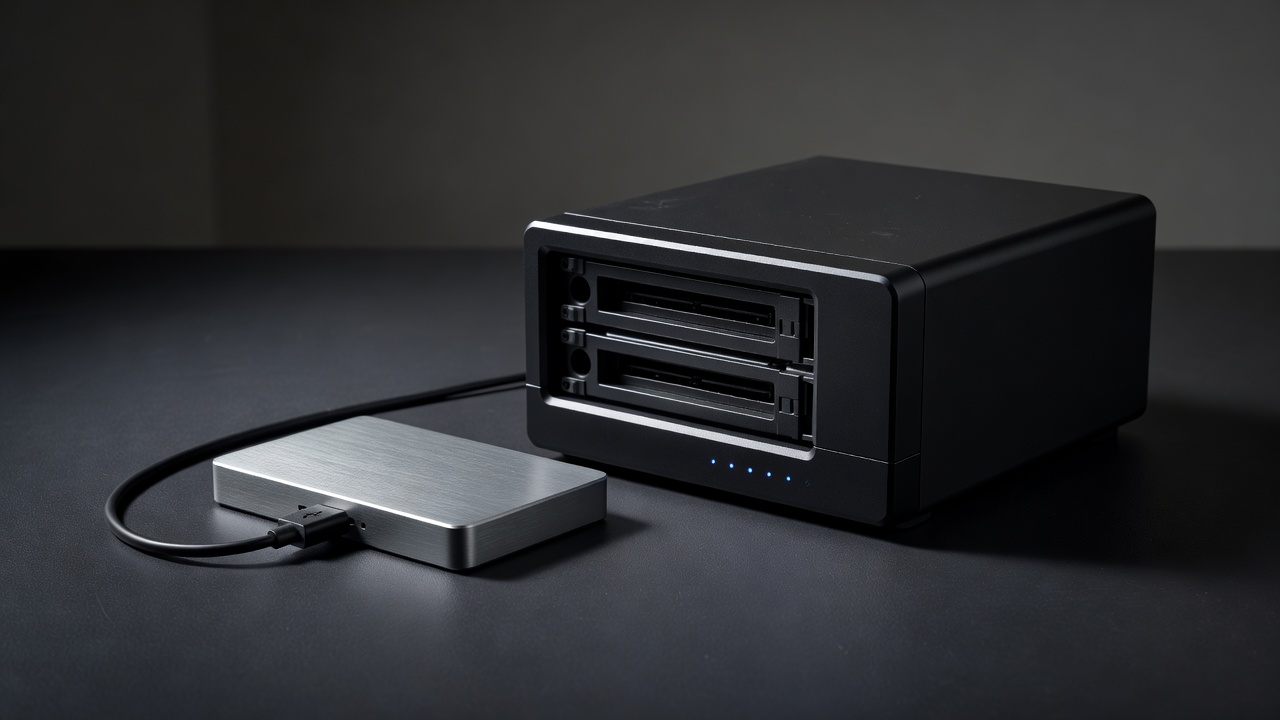
Snapshots live on the same drives as the data, so they share its fate if the pool fails. A second local copy covers that. The simplest option is a large USB drive plugged into the NAS, with a nightly versioned job using Synology Hyper Backup, QNAP Hybrid Backup Sync, or the UGREEN and TerraMaster backup apps. Versioned means the job keeps older states rather than overwriting, so a corrupted file doesn't silently replace the good one.
If you have the budget, an older or smaller NAS makes an excellent second target. Synology's Snapshot Replication can push snapshots to another Synology box; rsync works across brands.
Layer Three: Off-Site
You have three realistic choices. First, an encrypted cloud destination: Backblaze B2, Wasabi, Synology C2 Storage, or any S3-compatible service. You pay per terabyte per month, but the copy is automatic. Second, a second NAS at a trusted relative's home, connected over Tailscale, which is ideal for families who already help each other with tech. Third, rotating USB drives: one stays in your desk at work or with a friend, and you swap them monthly. It's cheap, but it only works if you actually do the swap.
Whatever you choose, encrypt on the NAS before data leaves it, and store the encryption key or password somewhere other than the NAS — in a password manager and on paper in a safe place. A perfect off-site backup you cannot decrypt is no backup at all.
What to Back Up, and How Often
You don't need to send everything off-site. Ripped films can be ripped again; your wedding photos cannot. Divide shares into irreplaceable (photos, documents, family video, business records), inconvenient to lose (music, machine backups) and replaceable (media you own on disc). Send the first category off-site nightly, the second weekly, and let the third live on the NAS alone if space or budget is tight.
Back Up the Computers Too
The NAS is a fine target for your laptops: Time Machine over SMB for Macs, Synology Active Backup for Business or Veeam Agent for Windows PCs. Those backups then flow into the same off-site schedule, so one plan covers the household.
Test the Restore
Every three months, pick a random file from each tier and restore it from each layer: a snapshot, the local copy, and the off-site copy. Time the off-site restore of a whole folder once a year so you know how long recovery would take. Write the steps on a single page and store it where someone else in the household could find it. That page is the most valuable thing this guide can help you make.